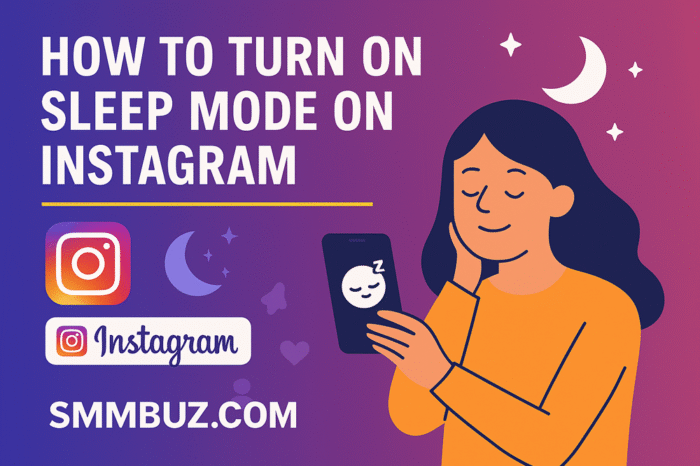

Have you ever noticed how Instagram seems to draw you in at the worst times, especially late at night? A quick scroll can easily turn into an hour before you know it. Learning how to turn on Sleep Mode on Instagram can really help. Instead of struggling with the urge to check your phone late at night, Sleep Mode lets you set automatic limits and get better rest.
With this feature, you don’t have to deal with constant notifications. It quietly mutes distractions and gives your mind some space. There are no interruptions, buzzing, or alerts tempting you back into the app—just a peaceful, distraction-free night.
Sleep Mode is also easy to use. Once you turn it on, Instagram stays active in the background but stops sending notifications. This helps you stay connected while also getting the rest you need.
In this guide, you’ll learn exactly what Sleep Mode (also known as Quiet Mode) does and why it matters. You’ll also discover how to Turn On Sleep Mode on Instagram so you can enjoy calmer nights and healthier screen-time habits.
How to Turn On Sleep Mode on Instagram (Step-By-Step Guide)
It’s easy for late-night screen time to take over your routine, so Instagram added a feature called Sleep Mode, also known as Quiet Mode. This mode silences alerts and lets your followers know you’re offline, giving you a break from constant notifications. It’s a simple way to build healthier habits, especially for creators who get lots of late-night messages.
Sleep Mode works easily on both iPhone and Android. Whether you want to avoid distractions after dinner or start your morning calmly, turning on this feature helps you stay focused. It helps you post when your audience is most active and take breaks during off-hours, which supports better overall well-being.
To turn it on manually, just follow a few steps. Open your profile, tap the menu in the top-right corner, go to Settings and Privacy, then open Notifications and select Quiet Mode. When it’s on, Instagram stops sending push notifications during your chosen hours. A small moon icon will also appear on your profile picture to show others you’re in Sleep Mode.
Steps to Turn On Sleep Mode on Instagram
Follow these quick steps to enable Sleep Mode in under a minute:
- 1. Open the Instagram app.
- 2. Tap the profile photo in the bottom-right corner.
- 3. After that, tap the menu icon (three horizontal lines) at the top-right.
- 4. Select Settings and Privacy.
- 5. Scroll down and tap Notifications.
- 6. Choose Quiet Mode.
- 7. Toggle the switch on.
- 8. Set your preferred Sleep Mode schedule (for example, 12 p.m.–8 a.m.).
When Sleep Mode is on, you won’t get any push notifications until your set time ends. After it turns off, Instagram gives you a summary of likes, comments, or messages you missed, so you can catch up easily.
Using features like Sleep Mode is a simple but effective way to use Instagram more intentionally. It helps you rest, stay productive, and build healthy habits. Every user and creator can benefit from finding this balance while growing real engagement and followers.
What Is Sleep Mode on Instagram?
Before you learn how to turn on Sleep Mode on Instagram, it’s helpful to know what it does. Sleep Mode lets you set quiet hours when notifications pause and your activity status shows you’re unavailable. It’s designed to give you more control over when the app can reach you and when it can’t.
Sleep Mode acts as a built-in buffer against constant notifications. You can still open the app, scroll, or post whenever you want, but you won’t be distracted by alerts. This is great for anyone who wants to disconnect at night, lower stress, or take a break from social media.
Another benefit is how simple and user-friendly it is. Instagram doesn’t log you out or block your account; it just enters quiet mode so you can enjoy your downtime without interruptions. For people who feel pressure to respond right away, this small change can be a big relief.
When Sleep Mode ends, Instagram gives you a clear summary of what you missed so you can catch up calmly. It’s a balanced, thoughtful feature—and knowing how to Turn On Sleep Mode on Instagram ensures you can use it to support better rest, focus, and a healthier relationship with your screen.
Who Should Use Sleep Mode on Instagram?
Sleep Mode isn’t only for people who stay up too late. It’s useful for anyone who wants more control over their digital life. Whether you scroll casually or create content full-time, this feature can make your Instagram experience calmer and more intentional.
For anyone who gets stressed by nonstop notifications, Sleep Mode offers a quick and effective way to calm the noise. If you often catch yourself checking your phone out of habit, turning on quiet hours can help you break that cycle and set healthier boundaries.
Students, professionals, and remote workers can benefit as well. Quiet Mode eliminates distractions during study sessions, meetings, or deep work time, helping you stay focused without the urge to check messages and comments.
Creators and business owners also find Sleep Mode extremely useful. Building a brand requires energy and consistency, and burnout is real. Quiet hours give you much-needed mental space so you can return with fresh ideas, high-quality posts, and better engagement.
Even parents or anyone trying to unplug in the evenings can benefit from this feature. By muting alerts during family time, dinner, or before bed, you create healthier routines and avoid unnecessary screen time.
How Sleep Mode Works on Instagram
When you switch on Sleep Mode, Instagram quietly adjusts the way it interacts with you. Instead of flooding your phone with updates, the app steps back and lets you enjoy uninterrupted time. It works through a few simple but effective actions that help you stay in control of your digital space.
First, all notifications pause. No alerts for likes, messages, story replies, or comments will reach your phone during your quiet hours. Second, your activity status changes to show that you’re in Sleep Mode, letting others know you won’t be responding right away. And finally, the feature automatically shuts off at the time you set, bringing your notifications back without needing to reset anything manually.
People also like this feature because it’s flexible. You can schedule Sleep Mode around your habits, like bedtime, work hours, or times when you want to focus. Many users pair it with their phone’s Do Not Disturb mode for a distraction-free environment.
Sleep Mode stands out because it takes a balanced approach. It doesn’t force you offline; it just reduces distractions. You can still use Instagram, check your feed, save ideas, or plan posts while staying in a calmer space. For creators and businesses, this helps keep a healthy workflow and build engagement in a sustainable way.
What Are the Benefits of Sleep Mode on Instagram?
Sleep Mode is more than just a quiet-hours feature. It’s a smart tool that can improve how you use Instagram. If you struggle with endless scrolling or constant notifications, you’ll notice the benefits right away.
One of the biggest advantages is the reduction in digital stress. When notifications stop buzzing every few minutes, your mind gets space to breathe. This helps you sleep better, stay focused during the day, and avoid that feeling of being “always online.”
Another major benefit is intentional usage. With notifications paused, you check Instagram when you want to—not when your phone tells you to. This puts you in control of your habits and cuts down on impulse scrolling.
Creators and brands also gain from this feature. By muting off-hours distractions, you save your energy for posting at peak times when your audience is most active. This naturally leads to higher engagement and healthier content consistency.
Since Sleep Mode gives you a clear summary of what you missed when it turns off, you never feel out of the loop. You stay updated without the chaos of constant alerts.
What’s the Difference Between Sleep Mode and Quiet Mode on Instagram?
At first glance, the terms Sleep Mode and Quiet Mode might sound like two separate Instagram features, but they’re actually the same thing. “Sleep Mode” is simply a nickname users created because many people turn it on at night, while Quiet Mode is the official name Instagram uses inside the app.
Where things get slightly confusing is how people use the terms in different situations. Some call it Sleep Mode when they’re trying to wind down before bed, and others prefer Quiet Mode during work or study hours. But functionally, there’s no difference at all.
Both versions of the term describe the exact same feature: Instagram pauses notifications, updates your activity status to show you’re unavailable, and creates a summary of everything you missed once the quiet period ends.
How to Schedule Sleep Mode Automatically
A great thing about Instagram’s Sleep Mode is that you don’t have to turn it on manually every night. You can set a schedule so Instagram activates Sleep Mode at the same time each day. This helps prevent late-night scrolling habits from sneaking up on you.
If you want Sleep Mode to run on its own, here’s what to do:
1. Open Settings and Privacy on Instagram.
2. Tap Notifications.
3. Select Quiet Mode.
4. Choose your Start Time and End Time.
5. Save or confirm your schedule.
After you set this up, Instagram will switch into Sleep Mode every day at your chosen time. Your evenings will be calmer, and your mornings will start without a flood of overnight alerts.
Having a consistent schedule is not just convenient; it also helps change your digital habits. When your phone stops buzzing at night, you’re less tempted to check Instagram, making it easier to relax. Over time, this simple change can improve your sleep, focus, and your relationship with social media.
Does Sleep Mode Affect Notifications or Activity Status?
When Sleep Mode is on, Instagram changes how it interacts with you, which is what makes the feature so helpful. Instead of sending notifications right away, the app holds all alerts until your quiet hours end. You won’t get notifications for messages, likes, comments, or tags while it’s active, but you can still open Instagram anytime to check in.
Another subtle change happens to your activity status. A small moon icon appears next to your profile, letting others know you’re currently in Quiet Mode. This visual cue helps set expectations by showing your friends or followers that you’re not available for immediate responses. It’s a simple way to set boundaries without saying a word.
Once Sleep Mode turns off, Instagram provides a clean, easy-to-read summary of everything you missed. Instead of getting interrupted all night, you wake up to a neatly organized list of your notifications—making it easier to stay updated without the chaos.
This mix of peace and control makes Sleep Mode a great tool for managing your digital life. Whether you’re building a brand, creating content, or protecting your mental space, taking intentional breaks can boost your creativity and consistency when you return online.
What Happens When Sleep Mode Ends?
When Sleep Mode ends, Instagram helps you return to your regular activity without overwhelming you. You’ll see a clear summary of everything that happened while you were away, like new likes, comments, messages, follows, and other interactions. This update lets you catch up at your own pace without the stress of constant notifications.
Notifications return to normal as soon as your quiet hours end. You’ll begin receiving alerts again, just like before, but they come in smoothly rather than in a chaotic burst. This makes the transition from “offline time” to “active time” feel much more manageable.
Your activity status also switches back automatically. The moon icon disappears from your profile, signaling to others that you’re available again. If you run a business or creator account, this helps set expectations for engagement and response times.
Another benefit is mental clarity. After a scheduled break, you may feel more refreshed, focused, and ready to engage. Sleep Mode gives you space without disconnecting you completely, so when it ends, you return to the app with intention instead of feeling tired.
In the end, when Sleep Mode ends, you get full control of your notifications again, your audience can see you’re active, and you can approach your feed and followers with a clearer, calmer mindset.
How to Take a Break Without Losing Engagement
Taking a break from Instagram doesn’t mean you’ll lose your reach. Many creators worry that being quiet for a few hours will hurt their visibility, but that’s not how Instagram works. The platform doesn’t penalize users for taking breaks or using Sleep Mode. In fact, short rests can help you come back with more creativity and better content.
The key is to be strategic about your time. Instead of being online nonstop, you can set up your workflow so your account stays active even when you’re taking a breather. Scheduling your posts in advance keeps your feed consistent, while engaging with followers during peak times ensures your interactions have the most impact.
Using Instagram Insights can also make a big difference. When you understand what your audience likes and when they’re most active, you can plan content that naturally performs better. That way, your engagement stays steady even when you’re not online.
If you want an extra boost while still protecting your time and energy, you can also explore trusted engagement growth services that focus on authentic, targeted visibility. This lets you work smarter instead of harder, keeping your presence strong while giving yourself room to rest.
Final Thoughts
Learning how to turn on Sleep Mode on Instagram is a simple step that can make a big difference in how you manage your time, energy, and digital well-being. Instead of letting notifications control your schedule, Sleep Mode lets you take charge and set healthier boundaries, whether you’re winding down at night, avoiding distractions at work, or just wanting some calm.
This feature is valuable because it offers balance. You’re not disconnecting from Instagram completely; you’re choosing when and how to engage. With scheduled quiet hours, less stress, and more focused screen time, Sleep Mode helps you come back to the app feeling refreshed and ready to create meaningful content.
In the end, using Sleep Mode is not just about muting notifications. It’s about building better habits, protecting your mental space, and staying consistent without burning out. Once you know how to turn on Sleep Mode on Instagram, you can use the platform in a way that supports both your creativity and your well-being.
FAQs About Instagram Sleep Mode
What is Instagram Sleep Mode?
Instagram Sleep Mode (also called Quiet Mode) is a feature that pauses notifications during the hours you choose. It helps you limit distractions, improve focus, and create healthier screen-time habits.
How Do I Turn On Sleep Mode on Instagram?
To activate it, go to Settings & Privacy → Notifications → Quiet Mode, then switch it on. You can learn the full steps in our guide on How to Turn On Sleep Mode on Instagram.
Can I still use Instagram while Sleep Mode is on?
Yes. You can scroll, post, or reply to messages whenever you want. The only difference is that you won’t receive real-time notifications until Sleep Mode turns off.
Will people know when I’m in Sleep Mode?
A small moon icon appears next to your profile picture to show that you’re in Quiet Mode. This lets others know you’re not available for instant replies.
Does Sleep Mode affect my engagement or reach?
No. Instagram does not punish users for using Sleep Mode. Your engagement stays the same, and taking breaks can even help you create better content when you return.
Can I schedule Sleep Mode automatically?
Absolutely. You can set start and end times so Sleep Mode turns on and off by itself every day. This is useful for nighttime routines, work hours, or periods when you need fewer distractions.
What happens when Sleep Mode ends?
Instagram gives you a summary of everything you missed — likes, comments, follows, and messages — so you can catch up quickly without feeling overwhelmed.
Is Sleep Mode available on both iPhone and Android?
Yes, Sleep Mode is available on both iPhone and Android, and the steps to turn it on are nearly the same for each device.